How to Create a WiFi Hotspot with ESP32 using Espressif IDE (ESP-IDF Guide)
Learn how to create a WiFi hotspot with ESP32 using Espressif IDE (ESP-IDF). Step-by-step guide to enable Access Point mode and connect your phone
🚀 Introduction
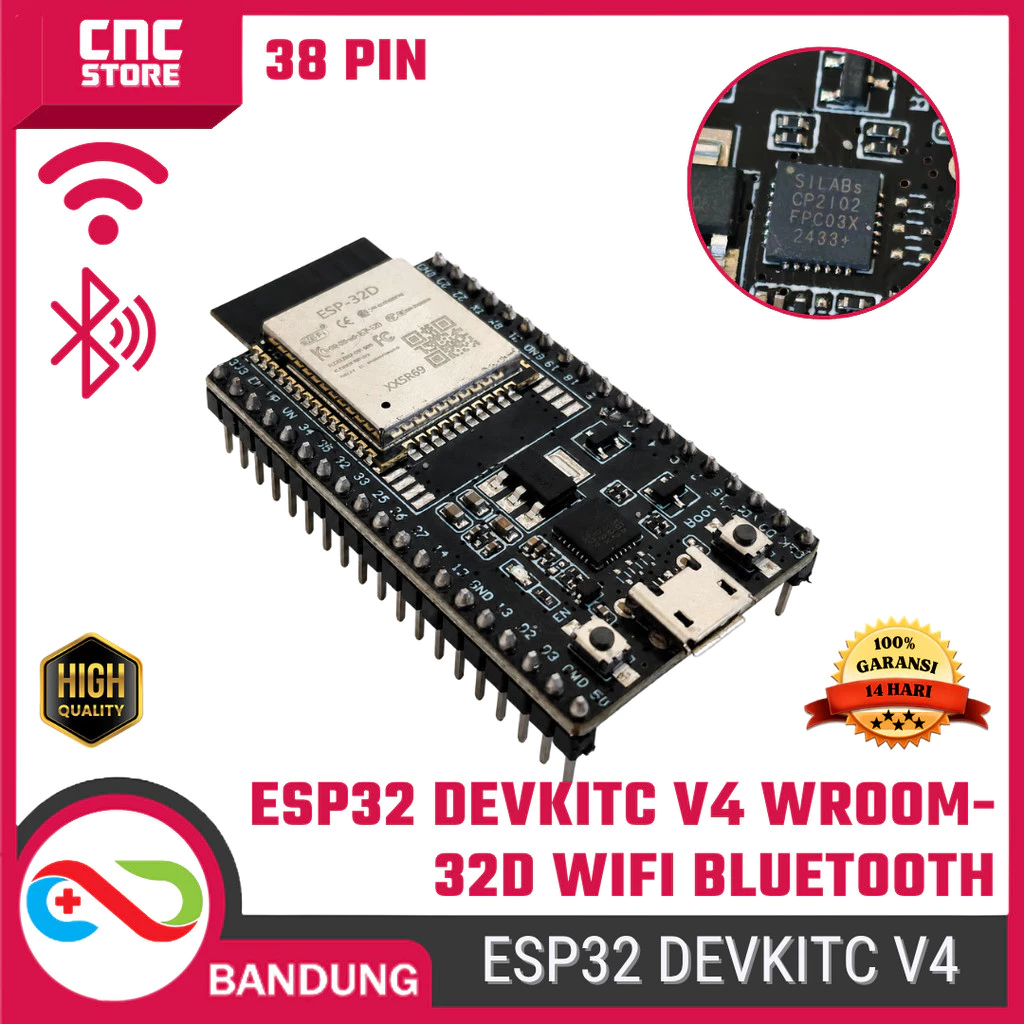
The ESP32 DevKitC V4 is not only capable of connecting to WiFi — it can also create its own WiFi network.
This feature is called Access Point (AP) mode, where the ESP32 acts like a mini router.
In this tutorial, you will learn how to:
- Create a WiFi hotspot using ESP32
- Set your own SSID and password
- Connect your phone directly to ESP32
We will use Espressif IDE (based on ESP-IDF), making it beginner-friendly.

Step 1: Create WiFi Hotspot Program
First, we write the code to make ESP32 broadcast its own WiFi.
#include "esp_wifi.h"
#include "esp_event.h"
#include "esp_netif.h"
#include "nvs_flash.h"
#include "esp_log.h"

#define WIFI_SSID      "ESP32_HOTSPOT"
#define WIFI_PASS      "12345678"
#define MAX_STA_CONN   4

void wifi_init_softap(void)
{
    esp_netif_init();
    esp_event_loop_create_default();
    esp_netif_create_default_wifi_ap();

    wifi_init_config_t cfg = WIFI_INIT_CONFIG_DEFAULT();
    esp_wifi_init(&cfg);

    wifi_config_t wifi_config = {
        .ap = {
            .ssid = WIFI_SSID,
            .ssid_len = strlen(WIFI_SSID),
            .channel = 1,
            .password = WIFI_PASS,
            .max_connection = MAX_STA_CONN,
            .authmode = WIFI_AUTH_WPA_WPA2_PSK
        },
    };

    if (strlen(WIFI_PASS) == 0)
    {
        wifi_config.ap.authmode = WIFI_AUTH_OPEN;
    }

    esp_wifi_set_mode(WIFI_MODE_AP);
    esp_wifi_set_config(WIFI_IF_AP, &wifi_config);
    esp_wifi_start();
}

void app_main(void)
{
    nvs_flash_init();
    wifi_init_softap();
}
👉 This code will:
- Create a WiFi network named ESP32_HOTSPOT
- Set password 12345678
- Allow up to 4 connected devices
🔌 Step 2: Build and Flash using Espressif IDE
Open your project in Espressif IDE or klik new project in ess[ressif IDE and than
- Click Build Project
- Click Flash Device
- Open Serial Monitor
👉 Wait until flashing is complete

dont forget to make name your proect

Please paste the program code above
📡 Step 3: ESP32 Starts Broadcasting WiFi
Once powered on, ESP32 will automatically:
- Start AP mode
- Broadcast WiFi signal
- Wait for devices to connect
📱 Step 4: Connect Your Phone to ESP32
On your phone:
- Open WiFi settings
- Look for: ESP32_HOTSPOT
- Enter password: 12345678
- Connect
👉 If successful, your phone is now connected to ESP32
📊 Step 5: Verify Connection
Check Serial Monitor logs:
I (1234) wifi: AP started
I (1235) wifi: station connected
🛒 Komponen yang Dibutuhkan

Gabung dalam percakapan